- Simple Method: Use the Maintenance plugin by WebFactory Ltd.
- Hands-On Method: Add a short code snippet to the
functions.phpfile of your active theme. - Built-In Method: Create the
.maintenancefile to the root directory of your WordPress installation and a one-line command.
Imagine you’re in the middle of an update on your WordPress site, and you realize it’s time to put the brakes on public access for a bit. You want to make sure that visitors aren’t greeted with a mess of half-finished pages or broken links. This is where WordPress maintenance mode comes in, giving you the ability to work behind the scenes while keeping everything looking tidy for your audience.
1. The Plugin Route: Swift and Simple
For most people, the easiest way to put your site into maintenance mode is by using a plugin. Think of it as flipping a switch—no code, no fuss. If you’re looking for a quick fix, plugins like Maintenance (by WebFactory Ltd) are an excellent choice.
Here’s how to do it.
- Install and Activate the Plugin: Head over to your WordPress dashboard, navigate to Plugins > Add New Plugin and type “maintenance” in the search bar. Find the Maintenance plugin and click on Install Now. Activate the plugin, and you’re good to go. Easy as pie. Note that Maintenance mode is automatically turned on after you activate the plugin.

- Customize Your Maintenance Mode Page: After activation, it’s time to design the maintenance mode page. Whether you want a simple “We’ll be back soon” message or a full-blown custom maintenance mode page with social links, this plugin’s got you covered. Note that the free version of the plugin only offers limited customization options. The PRO version offers beautiful ready-made themes for a more professional look.

- Activate Maintenance Mode: This plugin comes with a straightforward toggle. Turn it on, and your WordPress site is officially in maintenance mode. Visitors will now see your customized page, rather than your unfinished website.

Here’s an example of how a customized Maintenance Mode page designed with this plugin looks like.

2. The Hands-On Approach: DIY Maintenance Mode
If you’re feeling a bit more daring or prefer not to rely on plugins, you can manually put your WordPress website in maintenance mode. This involves adding a code snippet to your theme’s functions.php file. It’s a little more technical, but it gives you greater control.
Follow these steps to try it yourself.
- Access Your Theme Files: Go to Appearance > Theme File Editor.
- If this is your first time editing theme files, you will get a popup warning you that you are directly editing theme files, which could break your site (if you do something wrong). Click on I understand. I recommend creating a child theme from your active theme, setting it as the active theme, and modifying it instead of directly modifying the parent theme files.

- Open the
functions.phpfile of your active theme.

- Add the Maintenance Mode Code: Insert the following code at the end of your
functions.phpfile:
function wp_maintenance_mode() {
  if (!current_user_can("edit_themes") || !is_user_logged_in()) {
    wp_die(
      "<h1>Under Maintenance</h1><p>Our site is currently undergoing maintenance. Please check back soon!</p>",
    );
  }
}
add_action("get_header", "wp_maintenance_mode");
- Save Your Changes: Once the code is in place, save the file by clicking on the Update File button. Your site is now in maintenance mode, displaying a simple “Under Maintenance” message to visitors. Only you and other admins can bypass this and access the site normally.

6. Delete the code or comment it out to take the site out of maintenance mode.
3. Built-In Maintenance Mode: The .maintenance File Method
There’s another way to put your WordPress site into maintenance mode, and it’s one that’s built right into WordPress itself. This method involves creating a .maintenance file in your site’s root directory. It’s a more minimalist approach but gets the job done without any extra plugins.
Here’s how:
- Create the .maintenance File: Using an FTP client or the File Manager app in cPanel, create a
.maintenancefile in the root directory of your WordPress installation.

- Add a Simple Script: Open the file and add the following code:
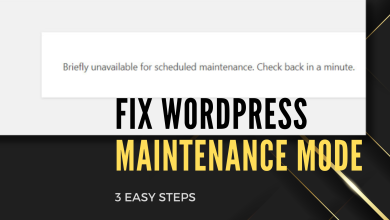
<?php $upgrading = time();. This will put your site in maintenance and the below message will be shown to visitors.

- Remove the File When Done: Once you’ve completed your updates, simply delete the
.maintenancefile to bring your site back online.
Dealing with the Dreaded “Stuck in Maintenance Mode” Issue
It happens. Sometimes your site can get stuck in maintenance mode, usually because an update didn’t finish properly. If your WordPress website is stuck in maintenance mode, don’t panic. Just delete the .maintenance file from your site’s root directory, and everything should return to normal. I cover this topic in more detail here.
Wrapping Up: Bring Your Site Back Online
When you’re done with updates, and your site is ready for visitors again, you’ll need to disable maintenance mode. For those using a plugin, simply toggle it off in the plugin settings. If you used a code snippet, remove it from functions.php, or if you opted for the .maintenance file method, just delete the file.
Your WordPress site should be back to its regular self, and your visitors none the wiser about the work that went on behind the scenes.
Maintenance mode is a simple yet powerful tool to keep your WordPress website looking sharp, even when you’re busy with updates and changes. Whether you go the plugin route or prefer a more hands-on approach, putting your site in maintenance mode ensures your visitors only see the best version of your site.