In a busy IT environment, handing out “temporary” local admin access is almost second nature. A user needs to install something, you grant the access, fix the problem, move on to the next ticket… and forget all about it.
The problem? Those leftover admin rights don’t go away on their own. Over time, they quietly pile up and turn into a serious security risk, which most monitoring tools never bother to check. If you don’t know who’s in the local Administrators group, you’re basically trusting luck.
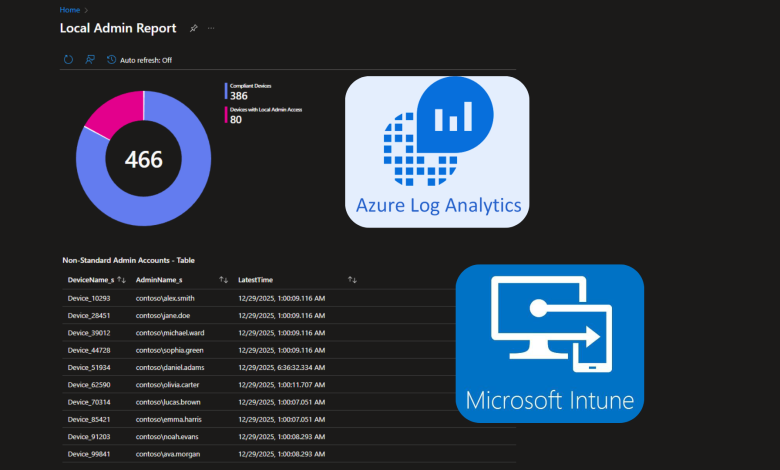
In this guide, I’ll walk you trough how to use Intune and Log Analytics to get a clear, reliable report of who actually has local admin access on every device in your environment.
Solution Overview
We use a proactive approach to ensure no local admins stay hidden:
- Detection: A PowerShell script runs daily on every machine to query the administrators group.
- Ingestion: Data is sent to a custom table in our Log Analytics Workspace.
- Analysis: KQL queries filter out authorized local administrator accounts to highlight outliers.
1. The PowerShell Collection Script
This script gathers members of the local admin group and sends the data to Azure. By running this via Intune, we get a fresh snapshot of the local admins on each PC every 24 hours.
Prerequisite 1: Get the $CustomerID from the log analytics workspace Overview tab.
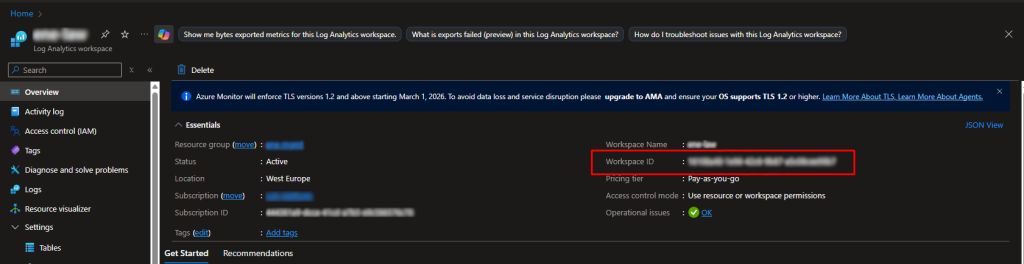
Prerequisite 2: To get the $SharedKey, use this AZ CLI query.
az monitor log-analytics workspace get-shared-keys \
   --resource-group xxxxx \
   --workspace-name xxxxxx \
   --query "primarySharedKey"
# --------------------------------------------------------------------------
# PowerShell Script: Send Local Administrator Group Members to Log Analytics
# --------------------------------------------------------------------------

# ======================
# 1. Configuration
# ======================
$CustomerID = "<your-customer-id>"
$SharedKey  = "<your-shared-key>"
$LogType    = "LocalAdminReport"

# ======================
# 2. Data Collection
# ======================
$DeviceName = $env:COMPUTERNAME

try {
    $AdminMembers = Get-LocalGroupMember -Group "Administrators"
} catch {
    Write-Error "Error retrieving local group members: $($_.Exception.Message)"
    exit 1
}

$DataToSend = @()
foreach ($Member in $AdminMembers) {
    $MemberName = $Member.Name
    $MemberSource = $Member.PrincipalSource
    if (-not [string]::IsNullOrEmpty($MemberName)) {
        $DataToSend += [PSCustomObject]@{
            DeviceName = $DeviceName
            AdminName  = $MemberName
            PrincipalSource = $MemberSource
            TimeGenerated = (Get-Date -Format s)
        }
    }
}

if ($DataToSend.Count -eq 0) {
    Write-Host "No members found in the Administrators group. Skipping log submission."
    exit 0
}

$JsonPayload = $DataToSend | ConvertTo-Json -Depth 5

# ======================
# 3. Build Request and Signature
# ======================
$Bytes         = [System.Text.Encoding]::UTF8.GetBytes($JsonPayload)
$ContentLength = $Bytes.Length
$APIVersion    = "2016-04-01"
$Date          = (Get-Date).ToUniversalTime().ToString("r")
$ResourcePath  = "/api/logs"

# Build the string for signature (see MS Docs)
$SignatureString = "POST`n$ContentLength`napplication/json`nx-ms-date:$Date`n$ResourcePath"

# Decode Shared Key and calculate signature
try {
    $KeyBytes   = [Convert]::FromBase64String($SharedKey)
    $HMACSHA256 = New-Object System.Security.Cryptography.HMACSHA256
    $HMACSHA256.Key = $KeyBytes
    $Hash = $HMACSHA256.ComputeHash([System.Text.Encoding]::UTF8.GetBytes($SignatureString))
    $Signature = [Convert]::ToBase64String($Hash)
} catch {
    Write-Error "Failed to create signature: $($_.Exception.Message)"
    exit 1
}

$Authorization = "SharedKey ${CustomerId}:$Signature"
$URI = "https://$CustomerID.ods.opinsights.azure.com/api/logs?api-version=$APIVersion"

# ======================
# 4. Send Data
# ======================
$Headers = @{
    "Authorization"        = $Authorization
    "x-ms-date"            = $Date
    "Content-Type"         = "application/json"
    "Log-Type"             = $LogType
    "x-ms-log-type"        = $LogType
    "time-generated-field" = "TimeGenerated"
}

try {
    Write-Host "Sending data to Log Analytics ($LogType)..."
    Write-Host "Target URI: $URI"
    $Response = Invoke-RestMethod -Uri $URI -Method Post -Headers $Headers -Body $JsonPayload
    Write-Host "Successfully sent log data."
} catch {
    Write-Error "Failed to send log data. Error: $($_.Exception.Message)"
    if ($_.Exception.Response) {
        try {
            $Reader = New-Object System.IO.StreamReader($_.Exception.Response.GetResponseStream())
            $Details = $Reader.ReadToEnd()
            Write-Error "Azure Response: $Details"
        } catch { }
    }
    exit 1
}

exit 0
2. Running the Script Daily via Intune
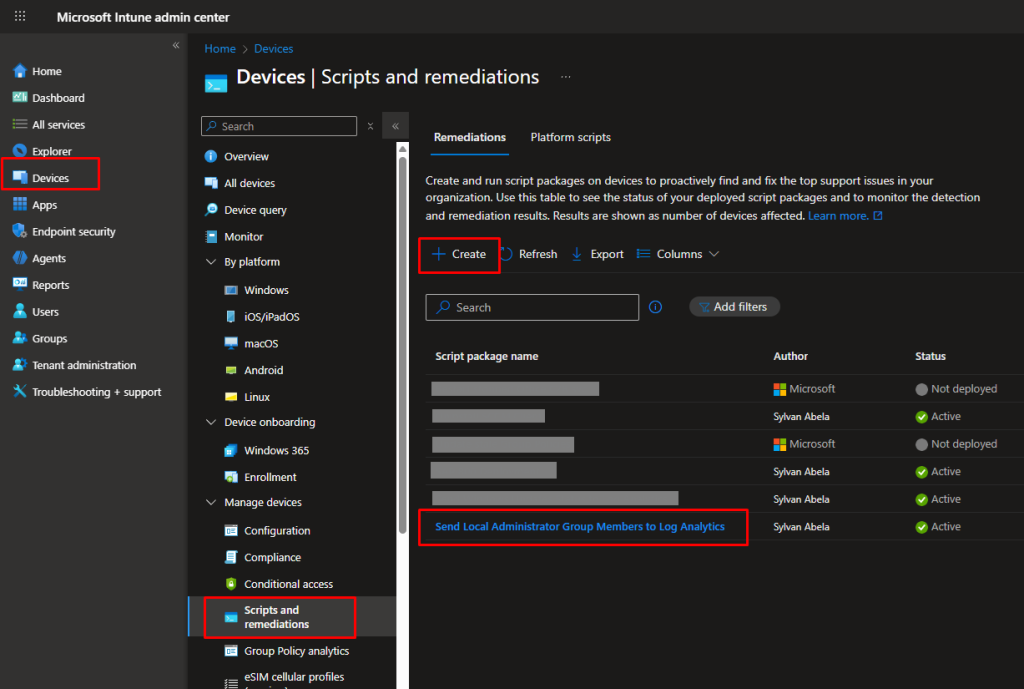
To force the check daily, we deploy an Intune remediation script.
- Go to https://intune.microsoft.com.
- Navigate to Devices > Scripts and remediations > Create.
- Enter the above script as the Detection Script and leave the Remediation Script empty.
3. Analyzing the Local Administrator Report
Once the data is in our log analytics workspace, we use Kusto (KQL) to audit the results. The goal is to separate legitimate domain accounts from unauthorized user accounts that still have the local admin right.
Compliance Summary
This query counts the number of devices where a user is in the administrators group but does not have “admin” in their name (filtering out the built-in administrator and domain admins).
let allDevices = LocalAdminReport_CL | summarize by DeviceName_s;
let offenderDevices = LocalAdminReport_CL
    | where isnotempty(AdminName_s)
    | where AdminName_s !contains "Admin"
    | summarize by DeviceName_s;
let totalOffenders = offenderDevices
    | summarize Count = count()
    | extend Category = "Devices with Local Admin Access";
let compliantDevices = (allDevices
    | join kind=leftanti offenderDevices on DeviceName_s
    | summarize Count = count()
    | extend Category = "Compliant Devices"
);
totalOffenders
| union compliantDevices
| project Category, Count
| order by Category asc
Detailed Account Audit
Use this query to select and list every specific account that has been granted local admin permissions in the last 90 days across your computer fleet.
LocalAdminReport_CL
| where TimeGenerated > ago(90d)
| where isnotempty(AdminName_s)
| where AdminName_s !contains "Admin"
| summarize LatestSeen = max(TimeGenerated) by DeviceName_s, AdminName_s
| order by DeviceName_s asc
Implementation Tips
- Intune Deployment: Set the script to run daily using Devices > Remediations. This ensures that if a user is added and then removed, your logs stay accurate.
- Filtering: Adjust the
!contains "Admin"logic if your organization uses a different naming standard for authorized admin accounts. - Workbook Visuals: In Azure Workbooks, use the “Pie Chart” renderer for the first query to get an immediate view of your environment’s health.
Summary
Good security isn’t about saying “no” to everything. It’s about knowing what’s actually happening in your environment. With this script and report in place, you get a clear audit trail that shows exactly when someone is added as a local administrator. That way, “temporary” access doesn’t quietly turn into a permanent problem, and you stay in control instead of playing cleanup later.